System setups • AIX 3.x • AIX 4.x • AS/400 • CUPS • HP3000 • HP9000 • Legacy Mac • Linux • Mac OS X • Mainframe • Sun Solaris • Sun OS • Windows
The purpose of this document is to assist you in configuring the Linux systems to print through RPM. It is intended for systems administrators familiar with Linux and LPR/LPD printing. For these instructions, you need to know the IP address or DNS hostname of the computer on which RPM is installed.
Creating a Queue in RPM
- In RPM, go to Create from the Queue menu.
- Enter the name of the new queue you wish to add and click Create. The new queue will be created.
- Highlight the queue and choose Settings from the Queue menu. Add the action(s) necessary to produce your desired results. For instance, if you want to archive the file to disk, add Archive to disk. If you want to print the documents, choose a Raw or Text printer action.
- Now add any transforms you require. If Linux is configured to send plain text, you may need to add a UNIX to DOS transform. To create a PDF, HTML, or PCL file, or use a Text printer action, you should also add a Text-to-text markup transform.
Note: These instructions are intended to provide only a brief introduction on RPM configuration. For more detailed instructions, refer to the RPM manual.
Creating a Linux Printer
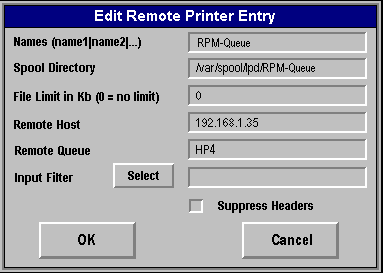
Here is an example of this printer's entry in the /etc/printcap file
:sd=/var/spool/lpd/RPM-Queue:\
:mx#0:\
:sh:\
:rm=192.168.1.35
:rp=hp4:
-
We recommend you perform a telnet test to verify your UNIX server can connect to RPM. To do so, type the following at a UNIX command prompt: telnet <address> 515. Substitute the IP address or hostname of your RPM host where appropriate.
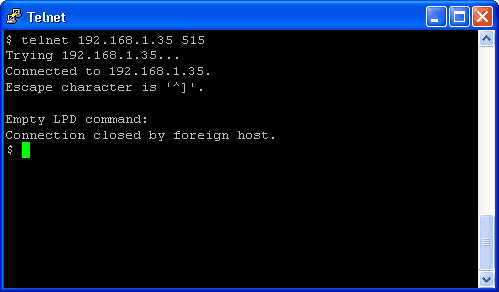
- A successful connection shows a "connected to <address>," message indicating connectivity. After pressing Enter, the connection will close and show an "unknown LPD command" message. If the RPM log has this same message, your telnet test was successful.
- Start the printer configuration utility by entering "printtool" at the command line. This tool may require root privileges. Note that your "printtool" output may look different than the screenshots provided.
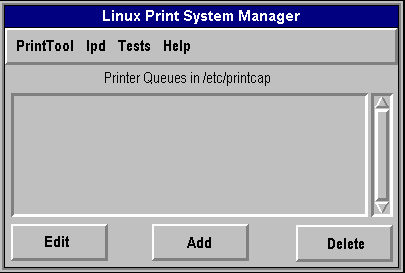
- Press Add. You will then be asked what type of printer to add. Select Remote Unix (lpd) Queue. Press OK.
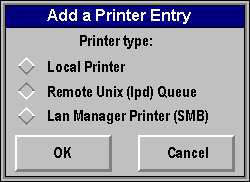
- Enter your IP address and RPM queue name where appropriate. It is not necessary to change the spool directory. You can add additional names for this printer by separating them with a pipe symbol (|). Press OK.
- To test this printer, enter the following command at a command prompt: cat /etc/printcap | lpr -P RPM-Queue.
If your Linux distribution uses the Common UNIX Printing System (CUPS), please review our detailed CUPS setup guide.