
Printing to shared printers
Screenshots in this article are from RPM 7.0.
As a Windows service, RPM Remote Print Manager® (“RPM”) cannot access shared printers on your network or shared folders.
For that reason, we added support for login credentials for any printer or folder device in RPM. You can also access shared printers or folders from a filter action in this same way.
Your Windows network protects shared printers and folders using login credentials. Credentials prevent people from outside your network from getting access to your printers and folders unless they have a valid login.
Shared printers use login credentials
Let’s look at the credentials used for a text print action. The other actions that use credentials work much the same way.
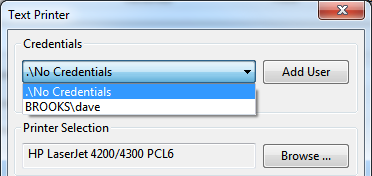
The Credentials droplist is at the top. Notice that No Credentials is the default. Also shown is “BROOKS\rpm-service-account”, an account in the BROOKS domain that we added earlier with Add User. If we selected it, this action would use that account’s login, and any printer or shared drive that account can access would also be available to RPM.
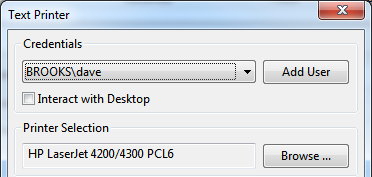
With that account selected, the form shows it, and Interact with Desktop becomes available:
Now let’s add a user. Click the Add User button.
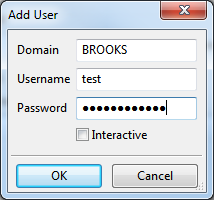
Here we have entered the user “other-service-account” in the BROOKS domain and entered a password. RPM will store the password encrypted; it never passes “over the wire” as clear text.
We explain the User is Interactive checkbox below.
Once we click OK, these login credentials are available to any action in RPM. Of course, you would have to select those credentials to use them.
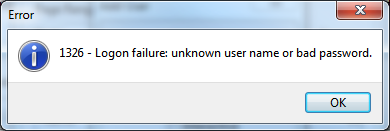
The only caveat to creating credentials is that the RPM user interface checks the user and password before storing. If you have a non-existent user or wrong password you’ll see this:
What happens when we text print with credentials
Any time RPM runs an action on a print job, the resources for that action are separate from the rest of RPM’s processing. If you have configured RPM to use login credentials for that action, then only that action will have those credentials.
It works more or less like this:
- RPM does a temporary login using the credentials
- RPM does the one action
- RPM logs off
The rights of that login will not “leak” into any other processing RPM is doing. The rights are isolated to the action performed on that print job, and only to that action and that print job.
Other actions with credentials
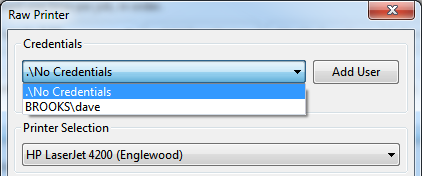
Just like the Text print action, the Raw print action uses credentials:
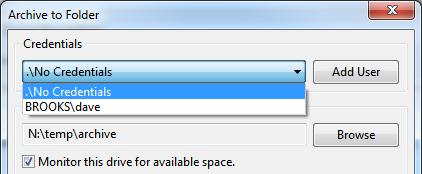
The Archive to Folder action uses credentials to write to shared file systems:
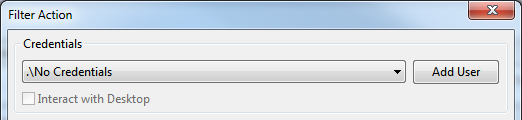
Similarly, the filter action uses credentials and has the Interact with Desktop option. It is greyed out until you select credentials:
Interactive processing
One thing we found with printing is that Windows expects that print drivers do not need the user’s desktop, but in actual practice, this is often not the case. For example, we noticed for some printers, you could print just fine in a regular login session, but nothing happened when you tried to print from the RPM service.
We overcame this by giving actions the ability to interact with the desktop. In RPM 7, this is available only when the RPM service runs as LocalSystem, set up this way; RPM normally runs under its own limited account, NT SERVICE\rpm.
When you print with the Interactive setting, you should be able to see any printer dialogs or status you need to. We recommend that the credentials for the print action be the same as your standard Windows login.
When you run a filter with “interact with desktop, " you’ll be able to see the program on your desktop. So, for instance, you can use the Windows Notepad application as a filter and view your print jobs in a window.
Alert notification
It’s typical (and highly recommended) for network users to change passwords occasionally. The only problem with this is RPM running in the background. The action will fail as soon as RPM attempts to execute an action with updated credentials.
Unfortunately, this has often been time-consuming to track down.
That kind of situation is the reason we added alerts, called critical events before RPM 7.0. The user interface keeps a list of alerts in its Alerts window, under Settings / Alerts. This way, you have a quick report of situations RPM has identified that could be a problem. If you are running the user interface when alerts occur, the Alerts window opens on its own the first time in each session.