
How to print PDF files from RPM
In this article, we explain how to print PDF files from our RPM Remote Print Manager® (RPM) product directly to a Windows printer.
There are several reasons you may want to do this:
- Let’s say you have a print format like PCL, but your printer uses a proprietary format and doesn’t support PCL. You can overcome this by using the RPM Elite version to translate PCL to PDF, then print that PDF to the printer. The output from that operation will use the Windows print driver for your printer.
- Or, if you were performing multiple actions on a PDF file, let’s say archiving to disk and sending an email attachment, you could also print in one step using the method we describe here.
Please refer to the companion article, How to print PDF files from a command line to a Windows printer. In this article, we described how to get your Windows printer name and create a command line to print your PDF to this printer. Please note that when we set up RPM, we use a command line with a few slight modifications.
Here are the steps to print that PDF using RPM:
- Create a filter action. On my system Foxit Reader is installed in “C:\Program Files (x86)\Foxit Software\Foxit Reader\” so my filter action setup looks like this::
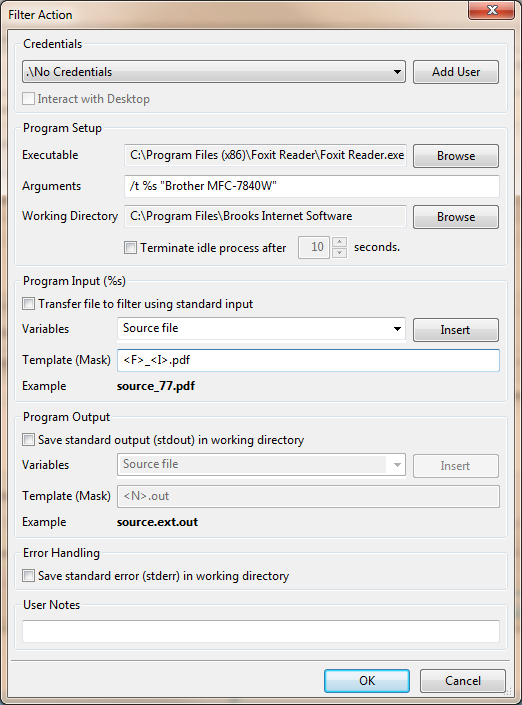
Filter action setup for Foxit to print PDF
Using the other article as a reference, for the arguments we have:
- “/t” to denote printing to a specific printer
- followed by %s which is going to be the path for the PDF file we’re printing (RPM automatically fills this in)
- and finally, the printer name in quotes.
We’re using the same printer we talked about in the other article.
We strongly recommend that you NOT use the Foxit software folder as the “working directory”. It’s best by far to use a temp folder of some kind; RPM provides a temp folder. Please do not use the spool folder either; this can create problems which are very difficult to track down.
Send PDF files to this queue, to test out the functionality. Please notice that we have the “save standard error log” setting selected. It’s possible that if there is a problem, that the Foxit Reader will leave some text here.
We hope you enjoy using the Foxit Reader to print your PDF files! You can always print by hand using a PDF reader program, but it saves a lot of time and effort to get RPM to do it for you.