
RPM Copy to Queue Action
Screenshots in this article are from RPM 6.2.
Copies the print job to another queue.
Purpose
The copy-to-queue action is key to designing your print workflow capabilities. We created this action with two processing scenarios in mind:
- Staged processing, where you would make some changes to the data, run some actions that use that format, then copy to another queue where you run more transforms. An example of this would be:
- Grouping like processing, where for instance, you are sending print jobs to the same list of recipients. Why not just copy to a queue that does that? Then if the list … or, when the list changes, you only have to change one action. That’s a very simplistic example, of course.
- Dynamic job routing: you can now direct print jobs to queues using job data in RPM Elite.
You can see how copy-to-queue fits with the other eight actions in the actions overview.
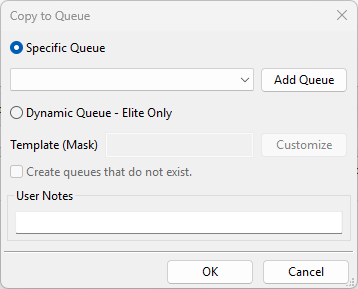
Setup
- Specific Queue: Use this setting to choose a queue from the list
- Destination Select the queue where the print job should be copied. Every currently defined queue except the current queue will be added to the drop list.
- Add Queue This lets you enter a queue name ad-hoc so you can copy to a queue you had not already created. This button will also provide you with the option to open a configuration window for the new queue right away.
- Dynamic Queue: Use this setting to construct a queue name from data in the current print job
- Variables: Select a job attribute to use in the template
- Insert: Click this button to insert the current job attribute in the template mask at the cursor position in the template mask
- Template: Contains plain text you enter plus a string to specify a specific job attribute
- Create queues that do not exist: Select this setting for RPM to create new queues; otherwise, the job will error since the queue does not exist.
The Dynamic Queue setting is the essence of dynamic job routing.
We recommend keeping the ‘Create queues that do not exist’ setting on so that you don’t lose print jobs. You can drag the job into another queue more easily than recreating it at the origin.
Usage
Let’s say you have two users who send print jobs to this queue. Let’s call them Fred and Sally. Fred and Sally each have their own printer.
This is one way to approach this problem.
- Let’s imagine you have queues defined in RPM named “print-fred” and “print-sally” which are each configured to print to the correct network printer.
- Select “Dynamic Queue”
- In the Template enter this text: print-
- In the Variables list, select “User”
- Click the Insert button
Now you can have Fred and Sally (and anyone else) send print jobs to this queue, where we find the Copy Queue action. Any job originating from the user “fred” will go to “print-fred”, and the same with “sally”.
For more information: