
RPM PDF to Printer Action
Screenshots in this article are from RPM 7.0.
Prints PDF jobs on any Windows printer. New 7.0
Purpose
More and more of what arrives at a print server is already a PDF, and a printer can’t print a PDF unless it understands PDF itself. Until now the way to print one from RPM was a filter running a PDF reader from the command line, which meant choosing a reader that would run unattended as a service, installing it on the server and keeping it up to date.
The PDF to Printer action does it with nothing else installed. RPM draws each page of the PDF and prints it through the printer’s own Windows driver, so it works with any printer you can print to from Windows: laser, inkjet, label or a shared printer on another computer. Each job is printed in its own process, so a damaged PDF fails only its own job.
It is in both RPM Elite and RPM Select.
Pair it with a conversion to print documents in another format:
- PCL to PDF Elite only then PDF to Printer prints PCL on a printer that doesn’t speak PCL.
- PostScript to PDF Elite only then PDF to Printer does the same for PostScript.
- Text markup to PDF then PDF to Printer prints text with an overlay on it.
Setup
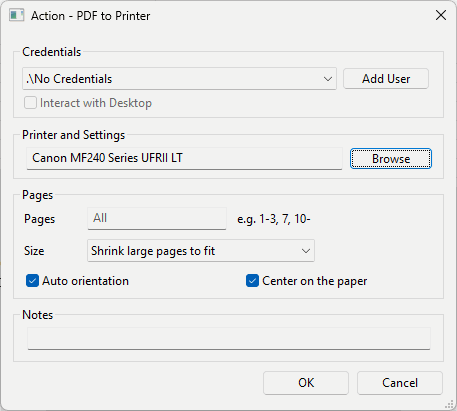
- Credentials Optionally, select the username, password, and domain for an account with access to the printer. Use this to print to a shared printer on another computer.
- Add User Enter another set of logon credentials; when the Add User dialog is closed, the user interface will attempt to validate the login to ensure valid credentials.
- Interact with Desktop Some print drivers or port monitors need a user to do something before they print; the FILE: port, for example, asks for a file name. Select this only for such a printer. The job then prints only while the user named in Credentials is logged on. In RPM 7 this option is available only when the RPM service runs as LocalSystem, set up this way; RPM normally runs under its own limited account, NT SERVICE\rpm.
- Printer and Settings Click Browse to choose the printer. The Windows print dialog opens; its Preferences button sets the paper, tray, two-sided printing and the rest of the driver’s options, and the number of copies. RPM saves them with the action and uses them for every job.
- Pages The pages to print, such as
1-3, 7, 10-, where10-means page 10 to the end. Leave it empty to print every page. - Size How a page is fitted to the paper:
- Shrink large pages to fit Pages larger than the printable area are reduced to fit; smaller pages print at their actual size. This is the default.
- Fit every page to the paper Every page is enlarged or reduced to fill the printable area.
- Actual size Pages print at their actual size. Anything outside the printable area is cut off.
- Auto orientation Turn a page that is wider than it is tall to fit portrait paper, and the other way round, so it isn’t shrunk to fit sideways. On by default.
- Center on the paper Center each page on the paper, rather than starting from the top left corner of the printable area. On by default.
- Notes Your own note about the action, shown in the Notes column of the queue’s action list.
Viewing PDF jobs
Job > View Contents opens a PDF job in RPM’s own PDF viewer, so you can see what a job holds before it prints, on a server where no PDF reader is installed.