
RPM Raw Print Action
Screenshots in this article are from RPM 6.2.
Sends documents consisting of printer codes directly to a printer, bypassing the printer driver. Typically the original print job contained the raw printer codes; RPM can also generate printer codes from other input types.
Purpose
RPM works with the Windows print system, but in the case of raw print, we do not talk to the device driver. We still spool to the printer for Windows to manage in the usual way.
We support:
- printing to local Windows printers
- printing to Windows shared printers, using login credentials
- interactive printing, using login credentials
- print several copies; the text print action prints repetitively if the number of copies is more than one, rather than trust the Windows driver (since we’re not using the driver, of course).
The raw print action also supports page range, using form feeds to delimit pages.
Setup
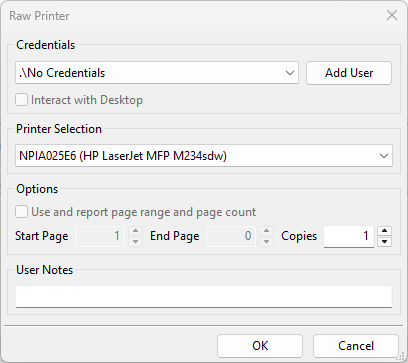
- Credentials Optionally, select the username, password, and domain for an account with sufficient access to the destination printer. An account with full access to the printer will allow RPM to control the filename passed to the Windows spooler.
- Add User Enter another set of logon credentials; when the Add User dialog is closed, the user interface will attempt to validate the login to ensure valid credentials.
- Interact with Desktop Some print drivers or port monitors may require a user to perform some predefined action prior to document output. For example, the FILE: port requires you to specify the filename. If your printer requires user interaction, select this option. Note: When this option is selected, the job will be printed only when the user specified in Credentials is logged on. If Credentials are not specified, this option cannot be selected.
- Printer Selection Select the printer to which jobs will be sent. This dialog shows a drop list of the printers the currently logged-in user can access.
- Use and report page range and page count You can suppress page range printing by leaving this unchecked. If checked, the raw print action will honor the first and last page settings and will log pages as they are printed to the message log.
- Start page Begin printing all incoming documents on the configured page number. This is an estimated position only and is not guaranteed to be accurate. Use this feature at your own risk.
- End page Do not print pages beyond the configured number. Specify 0 to print to the actual last page of the document. This is an estimated position only and is not guaranteed to be accurate. Use this feature at your own risk.
- Copies Each document will be printed the configured number of times.
Two things the driver was doing for you
Bypassing the print driver means bypassing the small conversions it performed silently. Two show up often enough to be worth naming, and both are cured either by a transform or by switching the queue to the Text print action, which handles them automatically.
Stair-step output. The sending host — typically a UNIX or Linux system — ends each line with a bare line feed, and the printer expects a carriage return with it. With no carriage return the next line begins where the last one ended, so the text walks down and across the page. Add the Unix to DOS transform to the queue. In our experience printers marketed as working with Windows are the least likely to handle a bare line feed on their own.
No page break between documents. A raw stream carries nothing to say a document has ended; with text print, that separation comes courtesy of the Windows driver. Three transforms cover it:
- PCL separator to place a page between jobs
- Insert bytes to reset the printer before the job
- Append bytes to clean up printer state after it