
RPM PostScript to PDF Transform
Screenshots in this article are from RPM 7.0.
Converts PostScript print jobs to PDF. Elite only New 7.0
Purpose
For years the answer to “can RPM turn PostScript into PDF?” was “yes, install Ghostscript and run it from a filter”. That still works in RPM 7 (see Ghostscript still works below).
RPM 7 adds a second way: it converts PostScript itself. Add this transform to a queue and PostScript jobs come out as PDF, with no other software to install on the server.
What it handles:
- PostScript from anywhere. Jobs from Windows PostScript printer drivers, which begin with PJL commands, convert as they are. So do jobs from UNIX and Linux tools such as a2ps and enscript, and PostScript written by applications.
- The fonts a job brings. Type 1, Type 3, CFF, TrueType and CID fonts embedded in the job are used as sent, including Asian-language CID fonts.
- The fonts it doesn’t. A job that names one of the 35 standard PostScript printer fonts, such as Palatino or Bookman, without including it gets the closest standard font, drawn with the original character widths, so text keeps its layout. Any other missing font is drawn with Helvetica, Times or Courier. Either way the letters look different (why).
- Graphics and images. Images, color spaces, gradients and patterns.
- Safe to run unattended. PostScript is a programming language, so RPM doesn’t let a job open, write or delete any file on the server. Each conversion runs in its own process, and a document that is damaged or never finishes fails its own job and nothing else. A conversion still running after 10 minutes is stopped.
Color in CMYK is converted to RGB in the PDF.
Fonts will look different
When a job uses a font it doesn’t include, expect that text in the PDF to look somewhat different from the printed page. This is normal, and it is not a fault we can fix.
PostScript printers have fonts built in, licensed to the printer maker, and many jobs name those fonts without sending them. They are not available to RPM or to your PC, so RPM draws that text with a similar font. For the standard printer fonts, each character takes the same space it would on the printer, so lines and pages keep their layout, but the letters themselves have a different shape. Other missing fonts are drawn with Helvetica, Times or Courier, so their text can also take more or less room. The PDF will differ from Ghostscript’s output too, which uses substitutes of its own.
Because a substitute font can never be the printer’s font, we don’t treat these differences as a support issue. Please do contact us if text is missing, unreadable or drawn in the wrong place, because those are not font differences.
If the exact typeface matters, have the program or printer driver that creates the job include its fonts (in Windows PostScript drivers, often a setting such as “Send TrueType as outline” or “Download as soft font”). Fonts the job includes are used exactly as sent.
Setup
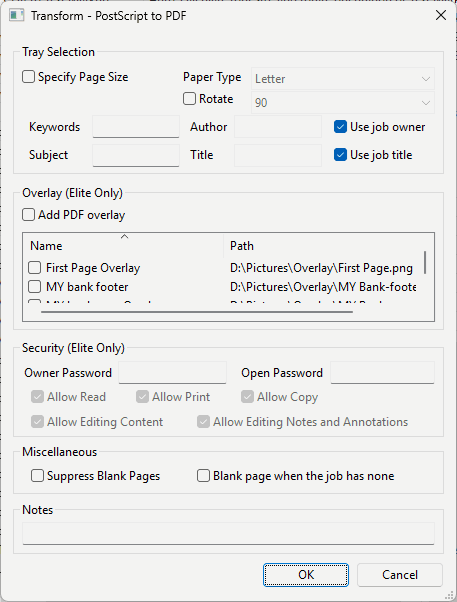
The settings are those of PCL to PDF, except Default to Landscape: a PostScript job sets its own page orientation.
Page
- Specify Page Size Select this, then choose a Paper Type, to set the page size used when the job doesn’t choose one.
- Rotate Turn every page of the PDF by the amount you choose. Use it if the pages open sideways or upside down in a PDF viewer.
Document information
- Keywords Words that help search engines and indexing software find the file.
- Subject The subject of the file.
- Author The author of the PDF file. Select Use job owner to fill it with the user who sent the print job.
- Title The title of the file. Select Use job title to fill it from the incoming job.
Overlay
- Add PDF overlay Select this, then tick each overlay to apply. The list shows the overlays you set up under Settings > Overlays. See Watermarks and overlays.
Security
- Owner Password Add an owner password to the PDF file. Whoever has it can change the permissions below.
- Open Password Add a password that is required to open the PDF file.
- Allow Read, Allow Print, Allow Copy, Allow Editing Content, Allow Editing Notes and Annotations What someone who opens the file may do with it.
Miscellaneous
- Suppress Blank Pages Leave out pages with nothing on them.
- Blank page when the job has none A job that draws nothing, such as a2ps run on an empty file, normally fails with “the job has no pages”. Select this to write a single blank page instead.
Ghostscript still works
RPM 7 doesn’t change how Ghostscript runs. A Filter transform or Filter action that runs Ghostscript keeps working, and you can still set up new ones: see How to use Ghostscript with RPM. Filter transforms made with the Ghost Convert dialog of earlier versions keep running too. The dialog is gone, but what it made was an ordinary Filter transform, and you change it as one.
Which to use:
- This transform needs nothing else installed or kept up to date, and keeps jobs away from the server’s files. It is in RPM Elite.
- Ghostscript gives you its own options and output formats, such as TIFF or PNG, or PDF/A with Ghostscript’s settings. Run from a Filter action, it works in RPM Select as well.
To move a queue from Ghostscript to this transform, replace the filter step with it. Keep any action that came after it, such as Archive to Disk or Email: it receives the PDF just as before.
If you only need PostScript printed, and the printer understands PostScript, you don’t need a conversion at all: send the job with the Raw Print action. To print it on a printer that doesn’t, convert it with this transform and print it with PDF to Printer.
Related
- PCL to PDF does the same for PCL jobs.
- PDF to Printer prints the PDF on a Windows printer.