
Frequently Asked Questions
Screenshots in this article are from RPM 6.2.
This FAQ focuses on RPM Remote Print Manager® (“RPM”). For related topics, please see the FAQ list in the menu above.
RPM OverviewPrinting issues
Processing based on print job content type
Q: Can RPM apply logic to a job like this:
IF (job) = SCS stream THEN (run SCS to Text Markup and Text Markup to PDF)
ELSE (run PCL to PDF transform)
A: At present, RPM does not have a satisfactory way to distinguish between binary formats. We can process SCS data, but you need to tell us it’s SCS. The same is valid with PCL.
Soon, we plan ways to recognize PCL data and route jobs to a different queue for processing.
Can RPM broadcast print?
Q: Is there a way I can print from my Windows application onto two printers at once
A: Yes, we have a post that describes how to broadcast print with RPM.
RPM broadcast printMy PCL and PostScript jobs are not printing correctly
Q: My PCL and PostScript jobs are not printing correctly. Is this because RPM is in trial mode?
A: please clarify what was not “correct,” but it’s not due to RPM being in trial mode. Printing in trial mode works perfectly fine.
In the troubleshooting guide, we mention three reasons why print jobs already formatted for your printer might not print, such as PCL and PostScript as you said:
- the printer you selected uses a “class driver”
- your printer is not compatible with the data format you are sending it
- rarely, an older version of RPM could append a null character if the print client appended the null character, and some printers will refuse to process
Go to the troubleshooting guide and scroll to the last section, “What about Raw Printer actions where the jobs disappear from the Windows queue but fail to print?”
RPM troubleshooting guide RPM trial mode
RPM is not working!
Q: “RPM is not working”
A: Now and then, customers report that it’s taking a very long time for RPM to print their jobs. We wrote an FAQ on slow printing to address that.
We’ve prepared a troubleshooting guide for that uncomfortable moment when you can’t figure out why nothing happens.
RPM troubleshooting guide FAQ on slow printing
How do I print to a shared printer or folder?
We have a guide that covers this topic. Here we explain login credentials and how this applies to both printing and archive.
This page says “Shared printers,” but please don’t be put off by that. The material applies to shared folders as well as printers.
RPM and shared printers & foldersHow to set up a Windows printer to print to RPM using LPR
Our setup pages include instructions for a variety of systems to print from, including Windows. We describe two methods:
- Set up a TCP/IP port to use LPR
- Also, use direct sockets (port 9100)
LPR Byte Counting
Q: Why is LPR Byte Counting Enabled required?
A: As of RPM version 6.2, we no longer require the Windows TCP/IP port to have “Enable Byte Counting” switched on.
RPM’s latest LPD moduleWhich versions of Windows does RPM support
Q: On which versions of Windows does RPM run?
A: We recently (June 2022) updated a different page so we can document this more completely. Please follow the link below.
Windows version supportHow to save print jobs to PDF
RPM receives print jobs in a variety of formats. This page describes strategies you can use to save print jobs to PDF. We cover a few other data formats as well.
Save to PDFWhat are ways I can specify the page range for a print job?
If your job contains searchable text, this page describes several ways to use RPM search functions to print a range of pages. You can still manually select the starting and ending pages in the user interface for a job.
Page rangePrint client setup
How to set remote systems to print to RPM:
Linux CUPS AS/400 OUTQ AIX 4.x AIX 3.x MVS mainframe IBM/VSE mainframe SGI IRIX Solaris 2.51 Solaris 7/sparc SunOS 2.6 DEC VAX OpenVMS Tandem OS HP3000
General questions
Where to install RPM
Q: Can I install RPM on my mainframe?
A: RPM is a Windows application, so you must install it on a Windows-based computer.
Q: Do I need to install RPM on each workstation in my network?
A: Some of our customers install RPM at each workstation; some do not. We suggest you talk with your IT staff or an outside IT consultant. Try downloading and configuring the software for one or more users. You should be able to make an informed decision that way.
Sending a print job to Brooks’ support
Q: How do I send a sample print job to support?
A: First, suspend the queue. Next, send the print job to that queue,
Finally, right-click on the job in the user interface, select Properties to find the path to the data file, then send that file in an email to support [AT] brooksnet[DOT] com.
Question about logging detail level
Q: What is the procedure to increase logs to the debug level?
A: In the Message Log faq, scroll down to “How do I keep the size of the message log in check”
or go to Configure / Log Settings in the user interface.
You can change the logging detail by clicking on “Log Detail”
Message Log faqHow to adjust the time we retain message logs
Q: How do we retain logs for a more extended period?
A: Go to the Message Log faq as above or check the Log Settings form in the user interface with Configure / Log Settings. You can set the period in this form.
Message Log faqHow to get the latest version
Q: Where can I get the latest version?
A: In the user interface, go to Help / Check for Updates
At this writing, update 6.2.0.604 is available, and we have a beta version of 7.0.
If you select the link, that version will download to the default download folder in your default web browser. Be sure to run the download from an elevated command line.
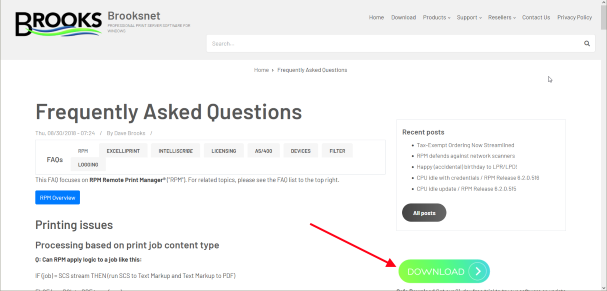
You can also download from our download page on the website:
Every page on our site has the download button (except our download page since that would not make sense:
On the download page, scroll down roughly one page and look for the button with the edition of RPM you need, or whatever software of ours you are looking for:
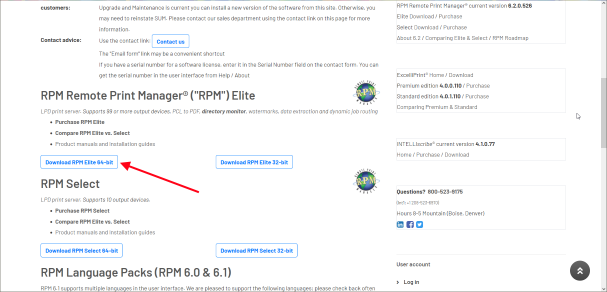
Here we’re pointing out RPM Elite for 64-bit, a common download on our site.