
ExcelliPrint Queue Settings
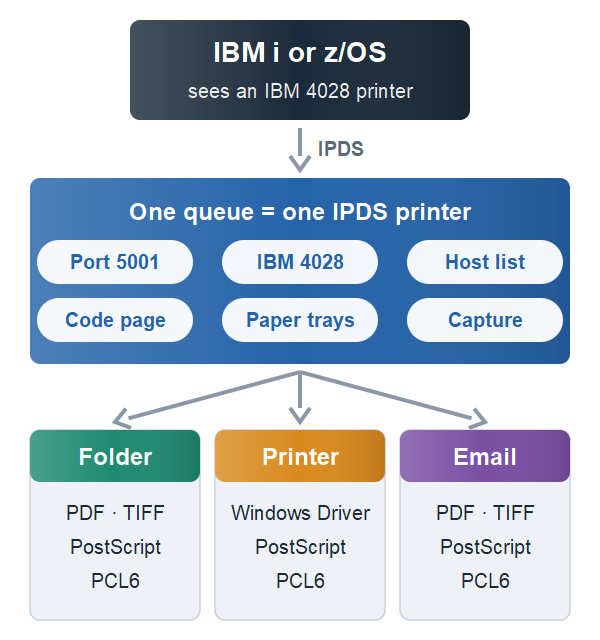
A queue in ExcelliPrint® is one IPDS printer as the host sees it: a port, the IBM printer it emulates, and what happens to its jobs. (It takes the place of ExcelliPrint 4.0’s printer and its output device together.) Create one with Queue > Create, and change one by double-clicking it in the queue list.
| Queue Name | A name for the queue, shown in the queue list and available to file names |
|---|---|
| Listening Port | The TCP port the host connects to. Each queue needs its own port, one that no other program uses; ports from 5001 up are customary. Changing the port keeps the queue’s jobs with it. A host still connected to the old port is disconnected when the job it’s sending ends, so no job is cut off; point it at the new port |
| Enable capture | Saves the raw data the host sends, so support can reproduce a job. On for new queues; captures are deleted with the job history |
| Accept jobs from | The hosts that may send this queue jobs: IPv4 addresses, such as 10.1.2.3, and ranges, such as 10.1.4.0/24, separated by commas or spaces. Required; to accept any host, enter 0.0.0.0/0. Connections from other addresses are refused and logged |
| Output Type | Folder, Printer or Email. Click Setup to choose the destination, the format and how files are named (below) |
| Printer Emulation | The IBM printer the host sees: IBM 4028 (the usual choice), 3812 or 3816. The host formats its jobs for that printer |
| Apply font attributes | Off (the default), the queue ignores the bold and italic a host asks for in its font list, as a real IBM laser printer does. On, it prints the styles the host asks for |
| Code Page | The host’s default code page, used when a job doesn’t name one, for example 37 (US/Canada), 1140 (US/Canada with the euro), 273 (Germany/Austria) or 285 (UK) |
| Paper Trays | The paper in each of the emulated printer’s trays, as reported to the host, which uses it to choose trays and lay out pages |
| Make each page the size of the tray’s paper | On, each page is the size of the paper in the tray the host selected, as a printer would print it. Off (the default for new queues), each page is the size of the host’s logical page, so nothing is cut off |
Output
| Folder | A local folder or a network share. Format: PDF, TIFF, PostScript or PCL6. Files are named from a template of the job’s details, such as {job-name}, {user-id}, {file-name} and the date |
|---|---|
| Printer | A printer installed on the computer, or a shared printer. Windows Driver prints through the printer’s own driver and works with any printer; PostScript, PCL6 and PDF go to the printer as they are, to a printer that understands them |
| The job as an attachment in PDF, TIFF, PostScript or PCL6, through your mail server. The sender, recipient, subject and message can include the job’s details |
A folder or printer on another computer is reached as a Windows user you store with the queue (Credentials); its password is protected by Windows.
A change to a queue’s output applies to its next job, even while the host stays connected. The other settings are the printer the host is connected to, so they apply when the host connects again: vary the printer device off and on at the host.
In the queue list, a green dot on a queue’s icon means a host is connected to it now; point at the queue to see which.
When changes apply
A queue reads its settings when the host connects, so changes apply from the host’s next connection. With a release timer of 15 seconds on the host, as suggested in Setting up IBM i, that’s seconds after the host’s last job. Only a Windows administrator can change a queue; others can view it.